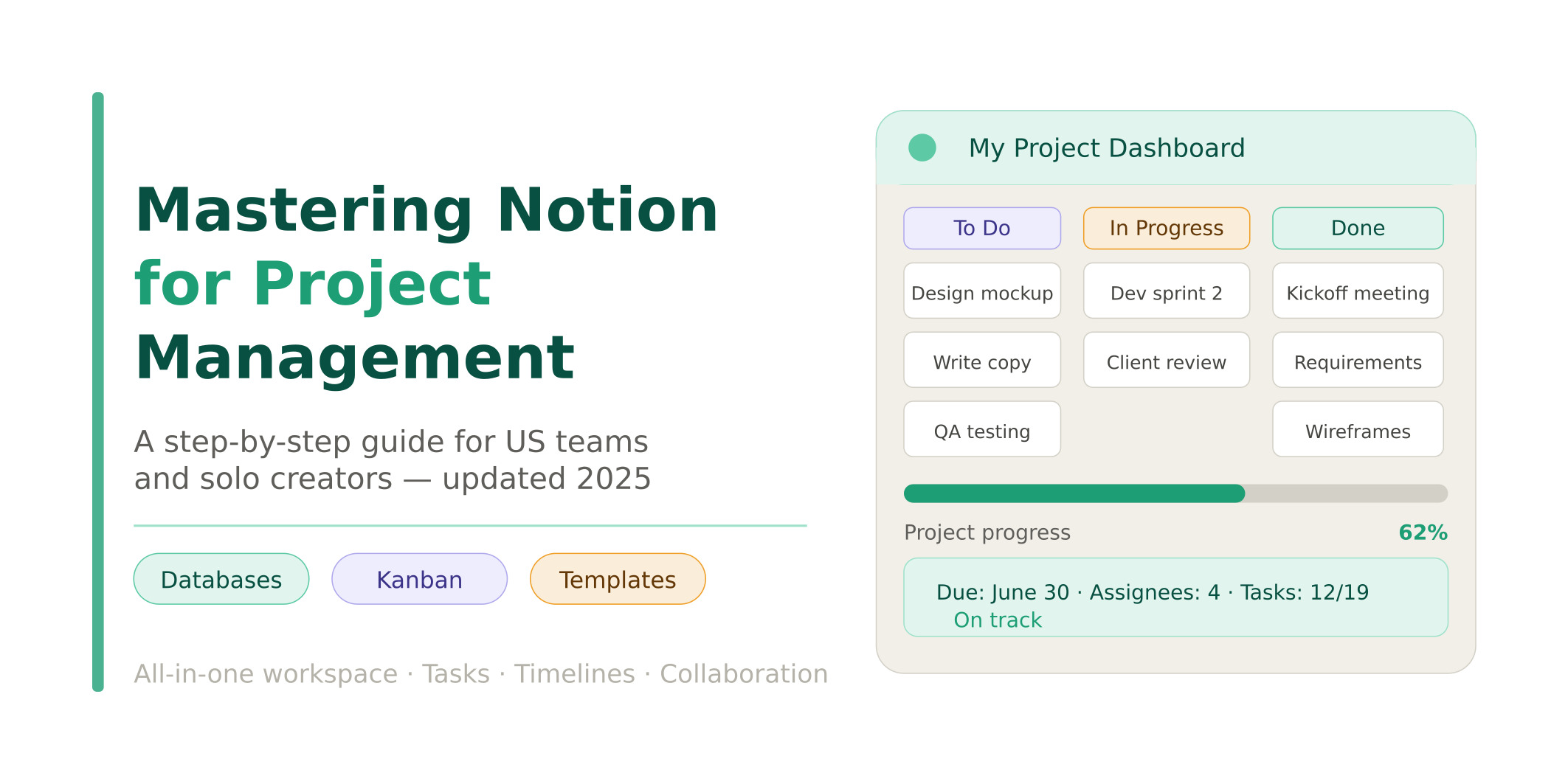
Managing multiple projects, deadlines, and team members across disconnected tools is exhausting. Missed updates, scattered files, and constant tab-switching kill productivity. Notion changes all of that. As an all-in-one workspace that combines databases, docs, task tracking, and collaboration in a single platform, Notion for project management has become the go-to solution for modern teams across the US and beyond.
Whether you are a solo freelancer juggling client work or a growing team coordinating sprints and deliverables, this guide will walk you through everything you need to know to set up and master Notion as your complete project management system in 2025.
Why Choose Notion for Project Management?
Notion stands out from traditional project management tools like Asana, Trello, and Monday.com because it does not force you into a rigid structure. You build the system that fits your workflow, not the other way around.
Here is why thousands of project managers in the US are switching to Notion:
- All-in-one workspace: Tasks, docs, wikis, meeting notes, and databases live in one place — no more switching between five different apps.
- Flexible database views: Switch between Kanban board, calendar, timeline, table, list, and gallery views with one click.
- Custom workflows: Build project pipelines that match your exact process using custom properties and filters.
- Real-time collaboration: Comment, assign, and co-edit with teammates without leaving the platform.
- Cost-effective: Notion’s free plan is generous, and paid plans start at an affordable rate for growing teams.
- Notion AI: Built-in AI assists with summaries, action items, and structuring complex projects automatically.
How Notion Compares to Popular Alternatives:
| Feature | Notion | Asana | Trello | Monday.com |
|---|---|---|---|---|
| Custom Database Views | ✅ 6 Views | ❌ Limited | ❌ Board Only | ✅ Multiple |
| Built-in Docs & Wiki | ✅ Yes | ❌ No | ❌ No | ❌ No |
| Free Plan | ✅ Generous | ✅ Limited | ✅ Yes | ❌ No |
| Notion AI | ✅ Built-in | ❌ Extra Cost | ❌ No | ❌ Extra Cost |
| Learning Curve | Moderate | Low | Very Low | Low |
| Customization | Very High | Medium | Low | High |
5 Ways on How to Use Notion for Project Management
Before diving into the step-by-step setup, here are five proven approaches that teams use to leverage Notion effectively:
- Task & Project Databases: Build interconnected databases where each project links to its related tasks, deadlines, and team members for full visibility.
- Kanban Board Workflows: Visualize project stages from To Do to Done using Notion’s board view, keeping everyone aligned in real time.
- Timeline & Gantt-Style Planning: Use the timeline view to map out project schedules, dependencies, and deadlines visually across weeks and months.
- Team Wiki & Documentation Hub: Store project briefs, meeting notes, SOPs, and client information in linked Notion pages for instant reference.
- Sprint Management: Engineering and product teams use Notion’s Projects, Tasks & Sprints template to run agile workflows without a separate tool.
Key Features of Notion Project Management
Notion packs a powerful set of features that rival dedicated project management software. Here are the core capabilities you will rely on daily:
| Feature | What It Does | Best Use Case |
|---|---|---|
| Databases | Organize projects and tasks with custom properties | Project tracking, task lists |
| Kanban Board View | Visualize workflow stages with drag-and-drop cards | Sprint management, status tracking |
| Timeline View | Map task durations and deadlines visually | Project scheduling, deadline planning |
| Calendar View | See tasks and deadlines on a monthly calendar | Deadline management, team planning |
| Relations & Rollups | Link databases and auto-calculate progress metrics | Cross-project visibility |
| Templates | Pre-built project structures to launch fast | Repeatable workflows |
| Notion AI | Summarize pages, generate action items, auto-fill data | Meeting notes, project briefs |
| Automations | Trigger updates when status or properties change | Reducing manual work |
| Comments & Mentions | Contextual team communication inside tasks | Async collaboration |
How to Use Notion for Project Management?
Follow these twelve steps to build a complete, production-ready project management system in Notion from scratch.
Step 1: Create a Project Dashboard
Your dashboard is the command center for everything. Start by creating a new page in Notion and naming it something like “Project HQ” or “Work Dashboard.” Add quick-access links to your most important databases, a progress summary, and any pinned announcements. Think of this as the homepage your team visits every morning to understand what needs attention that day.
💡 Pro Tip: Use a two-column layout — left column for active projects overview, right column for today’s tasks and upcoming deadlines.
Step 2: Create a Project Database
Inside your dashboard, type /database and select “Database – Full Page” to create your central projects database. This will serve as the master list of every project your team is running. Each row in this database represents one project, and each row is actually a full Notion page where you can store all project-related content.
Step 3: Define Your Database Properties
Properties are the columns that store key information about each project. Click the “+” button in your database to add these essential properties:
- Status: Select field with options like Planning, In Progress, On Hold, Completed
- Priority: Select field with High, Medium, and Low options
- Start Date & Due Date: Date properties for timeline tracking
- Project Manager: Person property to assign clear ownership
- Tags: Multi-select for categorizing by department or type
- Budget: Number property for tracking financial scope
- Linked Tasks: Relation property connecting to your tasks database
Step 4: Add Projects to the Database
Now add your real projects as rows. Click “+ New” to create your first project entry. Fill in each property, then open the project page to add more detail — objectives, background context, meeting notes, client briefs, and relevant documents. This turns each project row into a living document rather than just a data entry.
💡 Pro Tip: Create a project template inside the database so every new project starts with the same structure — goals, stakeholders, milestones, and risk notes pre-filled.
Step 5: Set Up Visual Project Management
One of Notion’s biggest strengths is the ability to view the same data in multiple formats. Click “Add a View” in your projects database and set up the following views:
- Board View (Kanban): Group by Status to see projects moving through stages
- Timeline View: Visualize start and end dates across a horizontal timeline
- Calendar View: See project deadlines on a month-by-month calendar
- Table View: Spreadsheet-style overview for data-heavy analysis
Each team member can use the view that works best for their role without affecting how others see the data.
Step 6: Task Management
Create a separate tasks database linked to your projects database using a Relation property. Your tasks database should include:
- Task Name: Title of the individual action item
- Assigned To: Person property for clear accountability
- Due Date: Deadline for this specific task
- Status: To Do, In Progress, In Review, Done
- Priority: High, Medium, or Low
- Parent Project: Relation linking each task to its parent project
- Estimated Hours: Number property for workload planning
With this setup, you can view all tasks across every project, or filter to see only your tasks due today.
Step 7: Collaboration and Communication

Notion eliminates the need for scattered email threads. Use these built-in collaboration features to keep communication contextual and efficient:
- @mention teammates inside task pages to notify them directly
- Leave inline comments on specific document sections for targeted feedback
- Use the page discussion thread for high-level project conversations
- Embed Google Meet or Zoom links in project pages for instant access to scheduled calls
💡 Pro Tip: Enable email notifications in Notion settings so team members receive alerts when they are mentioned or assigned a new task.
Step 8: Track the Tasks
Use Rollup properties to automatically calculate progress metrics from your tasks database into your projects database. For example, create a rollup that counts the percentage of completed tasks per project. This gives leadership a live view of project health without any manual reporting. Add a “Progress” formula property that displays this as a percentage for instant visual scanning.
Step 9: Reminders & Notifications
Never miss a deadline again by setting date reminders directly inside Notion. Click on any date property and toggle the reminder option to receive notifications 1 hour, 1 day, or 1 week before the due date. For team-wide alerts, use Notion’s native automation feature to send a Slack notification or trigger an email when a task status changes to “Overdue.”
Step 10: Review & Adjust
Schedule a weekly or biweekly review inside your Notion workspace. Create a “Weekly Review” template that prompts you to check which projects are behind schedule, what blockers exist, and which tasks need reprioritizing. Use filtered views to surface only overdue or high-priority tasks. Regular reviews keep your system accurate and your team aligned.
Step 11: Share and Collaborate
Notion makes it simple to share your workspace with internal team members and external stakeholders alike. Click “Share” in the top right corner and choose from these options:
- Invite teammates by email to give them full editing or comment-only access
- Share a public link with clients or stakeholders for view-only access
- Set permission levels by Teamspace to control visibility across departments
- Use guest access to collaborate with contractors without giving full workspace entry
Step 12: Archive Completed Projects
Completed projects sitting in your active database create clutter and slow navigation. Once a project wraps up, update its status to “Completed” and use a filter to hide it from main views. For long-term storage, create an “Archive” page and move completed project pages there. This preserves all your historical data for future reference without cluttering your active workspace.
💡 Pro Tip: Set up a Notion automation that moves any project marked “Completed” to your archive database after 7 days — zero manual effort required.
Frequently Asked Questions (FAQs)
Is Notion good for project management?
Yes. Notion combines task tracking, documentation, and team collaboration in one flexible workspace, making it an excellent choice for small to mid-sized teams.
Is Notion free to use for project management?
Notion offers a free plan with unlimited pages and basic features. Paid plans with advanced collaboration tools start at $10/user per month on the Plus plan.
How is Notion different from Asana?
Unlike Asana, which focuses solely on task management, Notion combines tasks, docs, wikis, and databases — giving teams a fully centralized workspace without needing multiple tools.
Can Notion replace Trello?
Absolutely. Notion’s Kanban board view replicates Trello’s core functionality while also offering databases, docs, and timeline views that Trello lacks entirely.
Does Notion have a Gantt chart?
Notion does not have a traditional Gantt chart, but its Timeline View provides a visual, date-based project overview that functions similarly for most teams.
Can Notion handle multiple projects at once?
Yes. With linked databases, filtered views, and a master dashboard, Notion makes it easy to manage dozens of simultaneous projects without losing visibility.
What is the best Notion template for project management?
The “Projects & Tasks” template is the most popular starting point for teams. The “Projects, Tasks & Sprints” template is best for engineering and agile teams.
Conclusion
Notion is not just a productivity app — it is a fully customizable project management platform that grows with your team. By following the twelve steps in this guide, you can build a clean, connected, and scalable system that replaces multiple disconnected tools with one unified workspace.
Start simple. Set up your dashboard and two databases. Then add views, automations, and integrations as your team gets comfortable. The best Notion system is the one your team actually uses — and with the right setup, that system can manage any project from kickoff to archive with confidence.
Ready to get started? Open Notion, create your first project database, and take control of your workflow today.
Disclaimer: Content on Next Byte Blog is for informational purposes only. Pricing and features mentioned are based on data available at the time of writing and may have changed. We are not affiliated with any tools or platforms mentioned unless stated. Some links may be affiliate links. Always verify information directly with the official source before making decisions.

Muneeb Azhar is the founder, publisher, and lead author of Next Byte Blog. A full-time professional freelancer specializing in SaaS, developer tools, and software reviews, he brings hands-on product experience to every piece he writes. His work covers best-of tool roundups, in-depth comparisons, and honest reviews of both free and paid software — helping readers make smarter decisions without the guesswork.


2 thoughts on “Mastering Notion for Project Management”