You do not need to be a developer to build a professional website in 2025. WordPress powers over 43% of all websites on the internet — from personal blogs and small business sites to major media outlets and online stores. It is free, flexible, and beginner-friendly enough that anyone with an internet connection and a few hours can build something they are genuinely proud of.
This step-by-step guide will walk you through exactly how to make a WordPress website from scratch — from picking a domain name to going live — with no coding required.
Quick Summary
Here is everything you need to know at a glance before diving into the full guide:
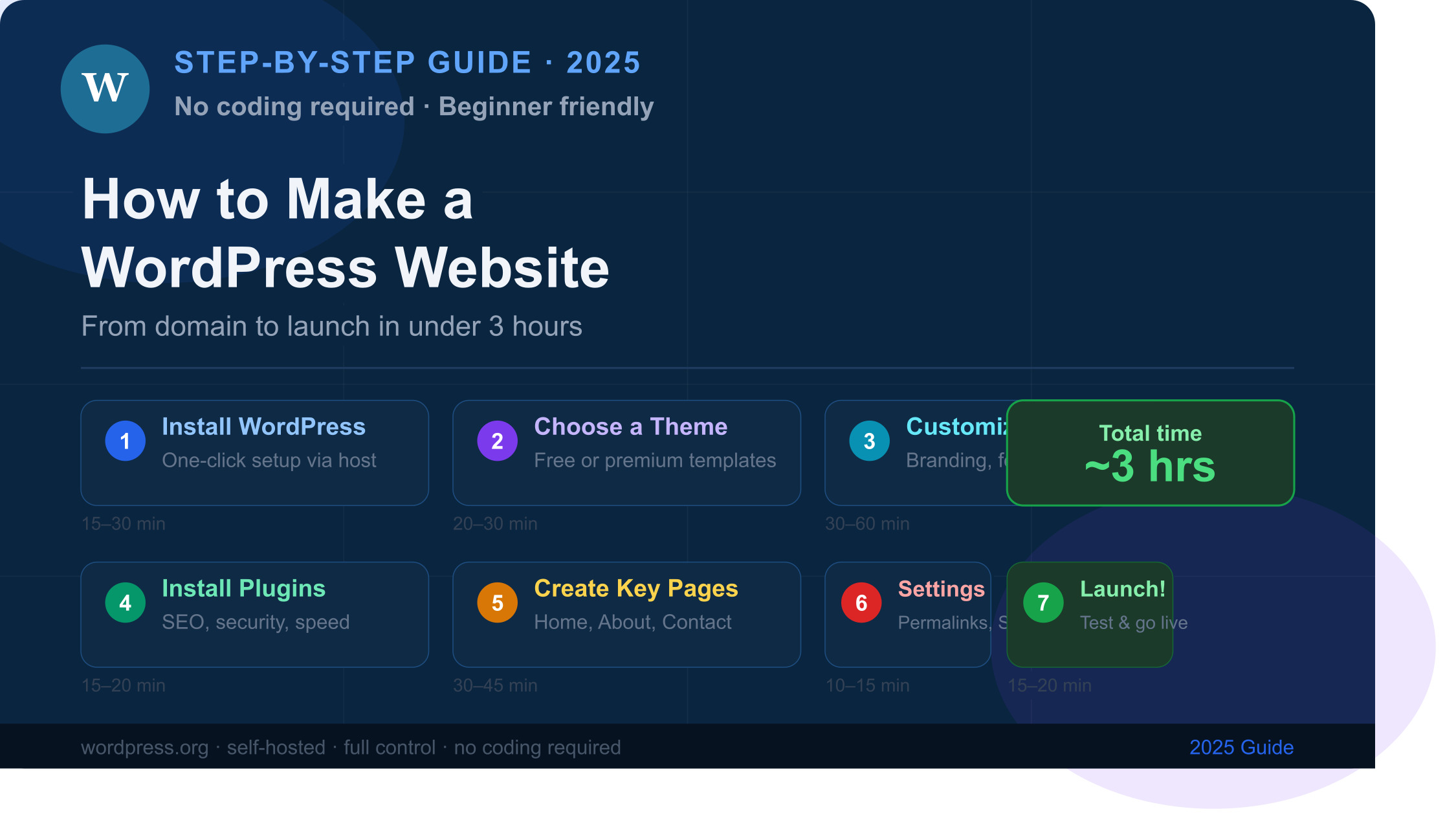
| Step | Task | Time Required |
|---|---|---|
| 1 | Install WordPress | 15–30 minutes |
| 2 | Choose a theme | 20–30 minutes |
| 3 | Customize your theme | 30–60 minutes |
| 4 | Install essential plugins | 15–20 minutes |
| 5 | Create key pages | 30–45 minutes |
| 6 | Configure settings | 10–15 minutes |
| 7 | Launch and test | 15–20 minutes |
| Total | Full website live | ~2–3 hours |
What you will need before starting:
- A domain name (your website address, e.g., yourbusiness.com)
- A web hosting plan (where your website files live)
- About $50–$150 for the first year of domain + hosting combined
What is WordPress and its Features?
WordPress is a free, open-source content management system (CMS) that allows you to create, manage, and publish a website without writing a single line of code. Originally launched as a blogging platform in 2003, it has since evolved into a full-featured website builder capable of powering everything from e-commerce stores and membership sites to portfolios and corporate websites.
Key features that make WordPress the top choice for US businesses and creators:
- 50,000+ plugins: Add any functionality — contact forms, SEO tools, e-commerce, booking systems, and more
- Thousands of themes: Control how your site looks with professionally designed templates
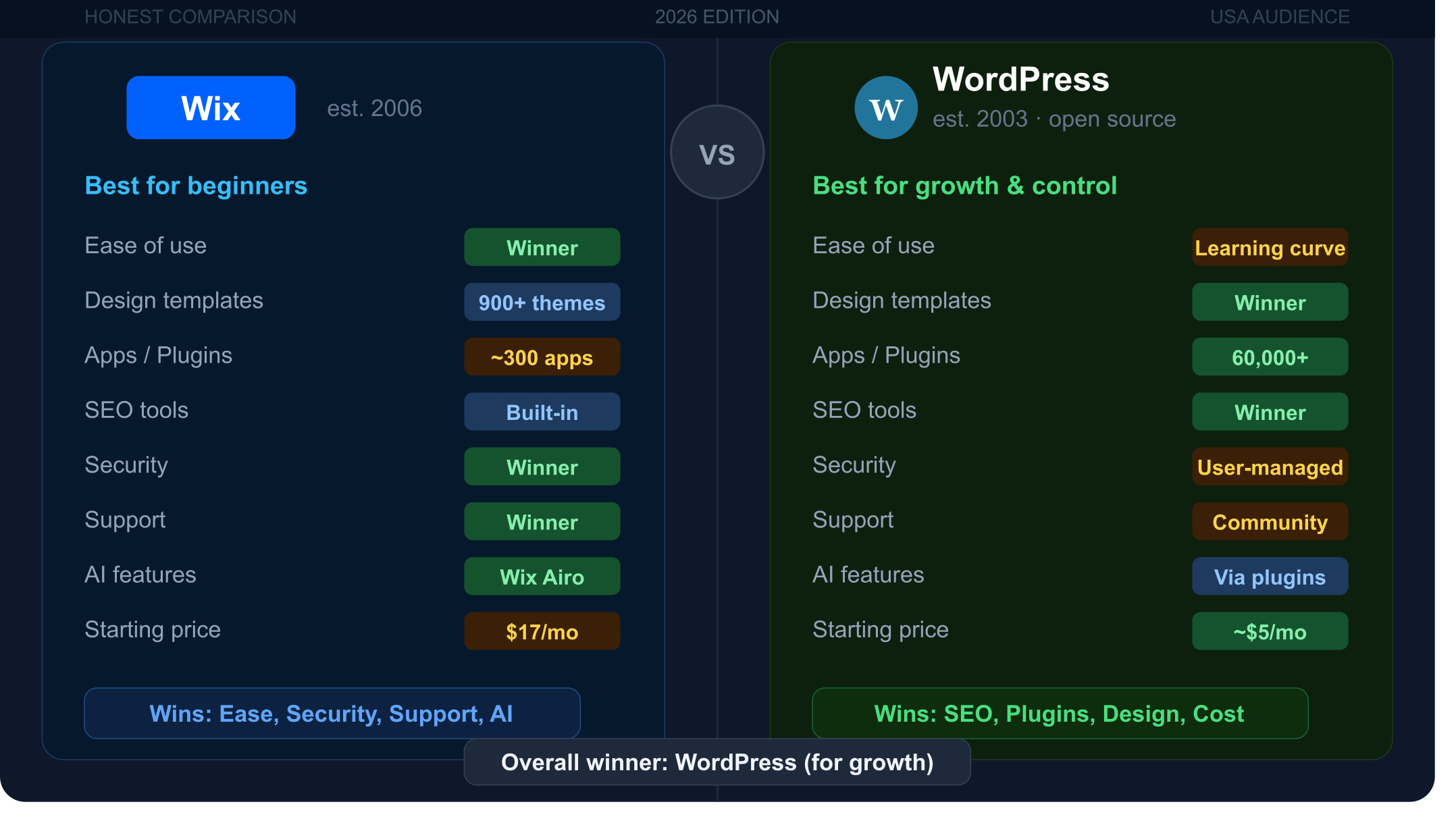
- Full ownership: Unlike Wix or Squarespace, you own your data and your website completely
- SEO-friendly architecture: Built with clean code and compatible with leading SEO plugins like Yoast and Rank Math
- Scalability: Works equally well for a 5-page business site or a 10,000-product online store
- Active community: A global community of developers, designers, and users providing ongoing support and tutorials
WordPress.org vs WordPress.com: This guide focuses on WordPress.org — the self-hosted version that gives you complete control over your website. WordPress.com is a hosted platform with more limitations on the free and lower-tier plans.
What are the Requirements for Building a WordPress Website?
Before you start building, make sure you have these three essentials in place:
1. Domain Name Your domain is your website’s address on the internet. Choose something short, brandable, and easy to spell. A .com extension is still the most trusted option for US audiences. Domain names typically cost $10–$15 per year from registrars like Namecheap or GoDaddy.
2. Web Hosting Hosting is the server where your website’s files are stored and delivered to visitors. For beginners, these are the most reliable WordPress hosting providers in 2025:
| Hosting Provider | Starting Price | Best For | Free Domain? |
|---|---|---|---|
| Bluehost | ~$2.95/mo | Beginners, blogs | ✅ Yes (1st year) |
| SiteGround | ~$2.99/mo | Speed & performance | ❌ No |
| Hostinger | ~$2.49/mo | Budget-friendly | ✅ Yes (1st year) |
| WP Engine | ~$20/mo | Business & enterprise | ❌ No |
| DreamHost | ~$2.59/mo | Privacy-conscious users | ✅ Yes (1st year) |
3. SSL Certificate An SSL certificate encrypts data between your site and visitors, enabling the padlock icon and HTTPS in the browser address bar. Most hosting providers include a free SSL certificate. It is essential for trust, security, and Google rankings.
Step-by-Step Process to Build a WordPress Website
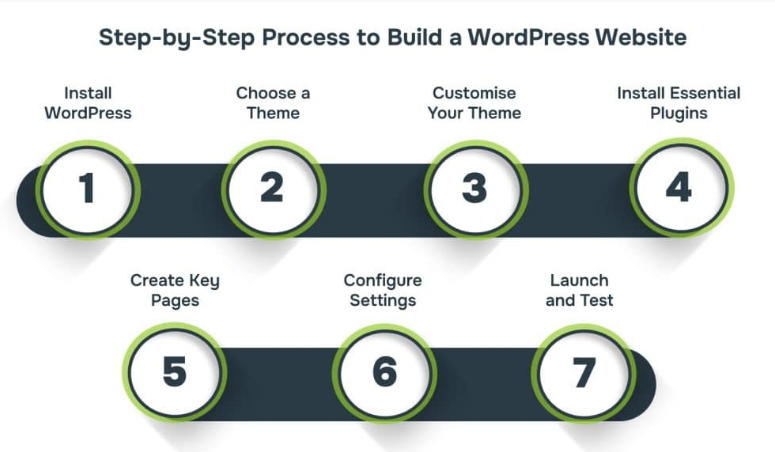
Step 1: Install WordPress
Most reputable hosting providers — including Bluehost, Hostinger, and SiteGround — offer a one-click WordPress installation through their control panel. Here is how the process works:
- Log in to your hosting account dashboard
- Find the “WordPress” or “Install WordPress” option (often labeled Softaculous or Auto Installer)
- Click “Install” and fill in your site name, admin username, and password
- Wait 1–2 minutes for the installation to complete
- Access your WordPress admin dashboard at yourdomain.com/wp-admin
Once inside the dashboard, you will see the left-hand navigation menu — this is where you manage everything on your site.
💡 Pro Tip: After installing WordPress, immediately go to Settings → General and set your site title, tagline, and timezone. These small details impact how your site appears in search engine results.
Step 2: Choose a Theme
A WordPress theme controls how your website looks — colors, fonts, layout, and overall design. You can change it at any time without losing your content.
How to install a theme:
- Go to Appearance → Themes in your dashboard
- Click “Add New Theme”
- Browse free themes in the WordPress directory or upload a premium theme
- Click “Install” then “Activate”
Top free themes for beginners in 2025:
- Astra — Lightweight, fast, and works with all major page builders
- Kadence — Clean design with excellent customization options
- GeneratePress — Minimalist and highly performance-optimized
- OceanWP — Feature-rich with strong WooCommerce support
For a more polished, professional result, consider a premium theme from ThemeForest or Elegant Themes (Divi). Most premium themes cost $30–$99 as a one-time purchase.
Step 3: Customise Your Theme
Once your theme is active, customize it to match your brand identity.
Go to Appearance → Customize to access the WordPress Customizer, where you can adjust:
- Site identity: Upload your logo, set your site title and favicon
- Colors: Set your primary brand colors for buttons, headings, and backgrounds
- Typography: Choose fonts for headings and body text
- Header and footer: Customize navigation menus and footer layout
- Homepage settings: Set a static page as your homepage or display your latest blog posts
If your theme supports the Gutenberg block editor or a page builder like Elementor, you can drag and drop design elements to build custom layouts without any coding.
Step 4: Install Essential Plugins
Plugins extend what your WordPress website can do. Think of them as apps for your site. Here are the must-have plugins for every new WordPress website:
| Plugin | Purpose | Free? |
|---|---|---|
| Yoast SEO / Rank Math | On-page SEO optimization | ✅ Free version |
| WPForms Lite | Contact forms and lead capture | ✅ Free version |
| W3 Total Cache / WP Rocket | Speed optimization & caching | ✅/💰 |
| Wordfence Security | Malware scanning and firewall | ✅ Free version |
| UpdraftPlus | Automated website backups | ✅ Free version |
| Smush | Image compression and optimization | ✅ Free version |
| MonsterInsights | Google Analytics integration | ✅ Free version |
To install a plugin: Go to Plugins → Add New Plugin → Search the plugin name → Click Install → Activate.
Step 5: Create Key Pages
Every professional website needs a set of foundational pages. Here are the essential pages to build first:
- Homepage: Your site’s first impression — include a clear headline, value proposition, and call to action
- About Page: Tell your story, build trust, and explain who you serve
- Services or Products Page: Describe what you offer and the benefits for your customers
- Contact Page: Include a contact form, email address, phone number, and business hours
- Blog Page: Optional but strongly recommended for SEO and organic traffic growth
- Privacy Policy & Terms: Required by law for most US businesses collecting user data
To create a new page: Go to Pages → Add New Page, give it a title, add your content using the block editor, and click Publish.
Step 6: Configure Settings
Before going live, take 10 minutes to configure these critical settings:
- Permalinks: Go to Settings → Permalinks and select “Post name” for clean, SEO-friendly URLs (e.g., yourdomain.com/about-us)
- Reading settings: Set your homepage display under Settings → Reading
- Discussion settings: Control whether comments are enabled on posts and pages
- Media settings: Configure default image sizes under Settings → Media
- Search engine visibility: Make sure the box that says “Discourage search engines from indexing this site” is unchecked under Settings → Reading
Step 7: Launch and Test
Before announcing your site to the world, run through this pre-launch checklist:
- ✅ Test all pages on desktop, tablet, and mobile
- ✅ Click every navigation link to check for broken pages
- ✅ Submit your contact form to confirm it is working
- ✅ Run your site through Google PageSpeed Insights to check load speed
- ✅ Verify your SSL certificate is active (look for the padlock icon)
- ✅ Submit your sitemap to Google Search Console for indexing
- ✅ Proofread all page content for typos and formatting issues
Once everything checks out, your WordPress website is ready to go live.
What are the Benefits of Using a WordPress Website for Your Business?
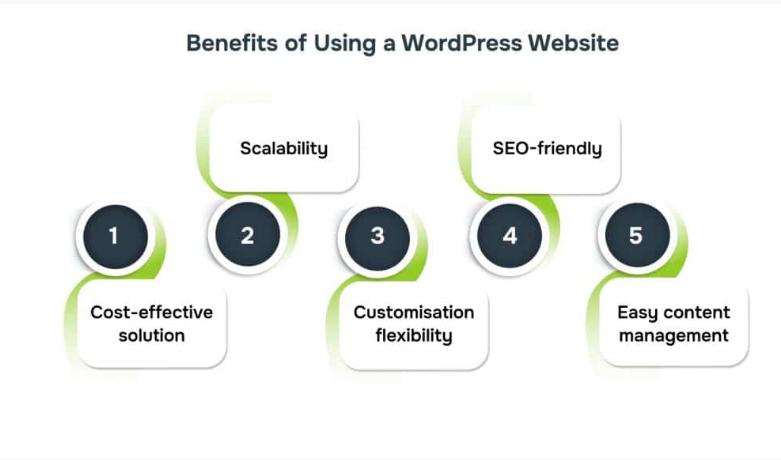
WordPress is not just popular — it delivers real, measurable advantages for US businesses of all sizes:
- Cost-effective: The WordPress software is free. You only pay for hosting and your domain name, making it the most affordable way to build a professional website.
- No coding required: The Gutenberg block editor and drag-and-drop page builders make content creation and design accessible to non-technical users.
- SEO advantages: WordPress is built with SEO best practices in mind and integrates seamlessly with top SEO tools to help you rank on Google.
- Full control and ownership: Unlike proprietary website builders, you own your content and can move your site to any host at any time.
- E-commerce ready: With WooCommerce installed, you can turn any WordPress site into a fully functional online store in hours.
- Massive plugin ecosystem: Over 50,000 free and premium plugins let you add virtually any feature without custom development.
Challenges of Building a WordPress Website
No platform is perfect. Here are the honest challenges to be aware of before you start:
- Learning curve: WordPress has more flexibility than drag-and-drop builders like Wix, which means there is more to learn upfront.
- Ongoing maintenance: You are responsible for keeping WordPress core, themes, and plugins updated regularly.
- Security management: Self-hosted WordPress sites can be vulnerable if security plugins and strong passwords are not in place.
- Plugin conflicts: Installing too many plugins — especially from low-quality developers — can cause performance issues or compatibility errors.
- Speed optimization: A WordPress site is only as fast as its theme and hosting allow. Poor choices here result in slow load times and lost visitors.
The good news is that every one of these challenges is manageable with the right hosting, a lightweight theme, and a handful of quality plugins.
Examples of Successful WordPress Websites
WordPress is trusted by some of the world’s most recognized brands and publishers:
| Website | Industry | Why It Stands Out |
|---|---|---|
| TechCrunch | Tech media | High-traffic news site with fast load times |
| The New Yorker | Publishing | Premium editorial design and paywall integration |
| Sony Music | Entertainment | Visually rich artist and album showcase |
| BBC America | Broadcasting | Large-scale media site with video integration |
| WooCommerce.com | E-commerce | Built on WordPress, powers 28% of all online stores |
| NASA’s Jet Propulsion Lab | Government/Science | Complex content management at institutional scale |
These examples prove that WordPress scales from a personal blog all the way up to enterprise-level digital operations.
Conclusion
Building a WordPress website in 2025 is more accessible than ever. With one-click hosting installation, thousands of free themes, and a plugin for practically every feature you can imagine, you can go from zero to a fully functional, professional website in a single afternoon.
The key is to start simple. Get your domain, choose reliable hosting, install WordPress, pick a fast theme, add the essential plugins, and build your core pages. Do not try to perfect everything before launching — a live website that you improve over time is always better than a perfect website that never goes live.
If you are ready to build your WordPress site, start with your domain name and hosting today. Everything else follows from there.
FAQs
How much does it cost to make a WordPress website?
A basic WordPress website costs $50–$200 for the first year, covering domain registration and hosting. The WordPress software itself is completely free.
Do I need coding skills to build a WordPress website?
No. WordPress is designed for non-developers. The block editor and page builders like Elementor allow you to design visually without writing any HTML or CSS.
How long does it take to build a WordPress website?
A simple 5-7 page website can be built in 2–4 hours. A more complex site with e-commerce or custom features may take a few days to a couple of weeks.
What is the difference between WordPress.org and WordPress.com?
WordPress.org is self-hosted and gives you full control. WordPress.com is a hosted platform with built-in limitations on free and lower-tier plans. This guide covers WordPress.org.
Which hosting is best for WordPress beginners?
Bluehost, Hostinger, and SiteGround are all beginner-friendly, affordable, and officially recommended by WordPress.org for new websites.
Can I build an online store with WordPress?
Yes. Install the free WooCommerce plugin and you can sell physical products, digital downloads, subscriptions, and services directly from your WordPress site.
Is WordPress secure?
Yes, when properly maintained. Keep WordPress, themes, and plugins updated, use a security plugin like Wordfence, and choose strong admin passwords to minimize risk.
Can I change my WordPress theme after launch?
Yes. You can switch themes at any time without losing your content, though some design adjustments may be needed after switching.
Disclaimer: Content on Next Byte Blog is for informational purposes only. Pricing and features mentioned are based on data available at the time of writing and may have changed. We are not affiliated with any tools or platforms mentioned unless stated. Some links may be affiliate links. Always verify information directly with the official source before making decisions.

Muneeb Azhar is the founder, publisher, and lead author of Next Byte Blog. A full-time professional freelancer specializing in SaaS, developer tools, and software reviews, he brings hands-on product experience to every piece he writes. His work covers best-of tool roundups, in-depth comparisons, and honest reviews of both free and paid software — helping readers make smarter decisions without the guesswork.